
FileSender User Guidance
You know the problem. You need to send a file larger than a couple of megabytes to someone, and the email comes back: attachment too big. Then what?
Welcome to to FileSender, a web-based application that allows authenticated users to securely and easily send arbitrarily large files to other users. This document will guide you through the various features and functionalities available to you.
Table of Contents
...
...
How it works
Users can upload files through the web interface or via API, with the Large File Transfer Service supporting resumable uploads for large files. Upon successful upload, a secure download link is generated, which can optionally be sent directly to the recipient via email. The recipient, upon receiving the download link, can securely download the file, with the service ensuring that only authorized recipients have access. Additionally, users receive notifications of successful uploads and downloads, and detailed tracking logs are available for auditing purposes.
Getting Started
After logging in, you will be greeted with the main interface where you can easily upload files and manage your transfers.
Uploading Files
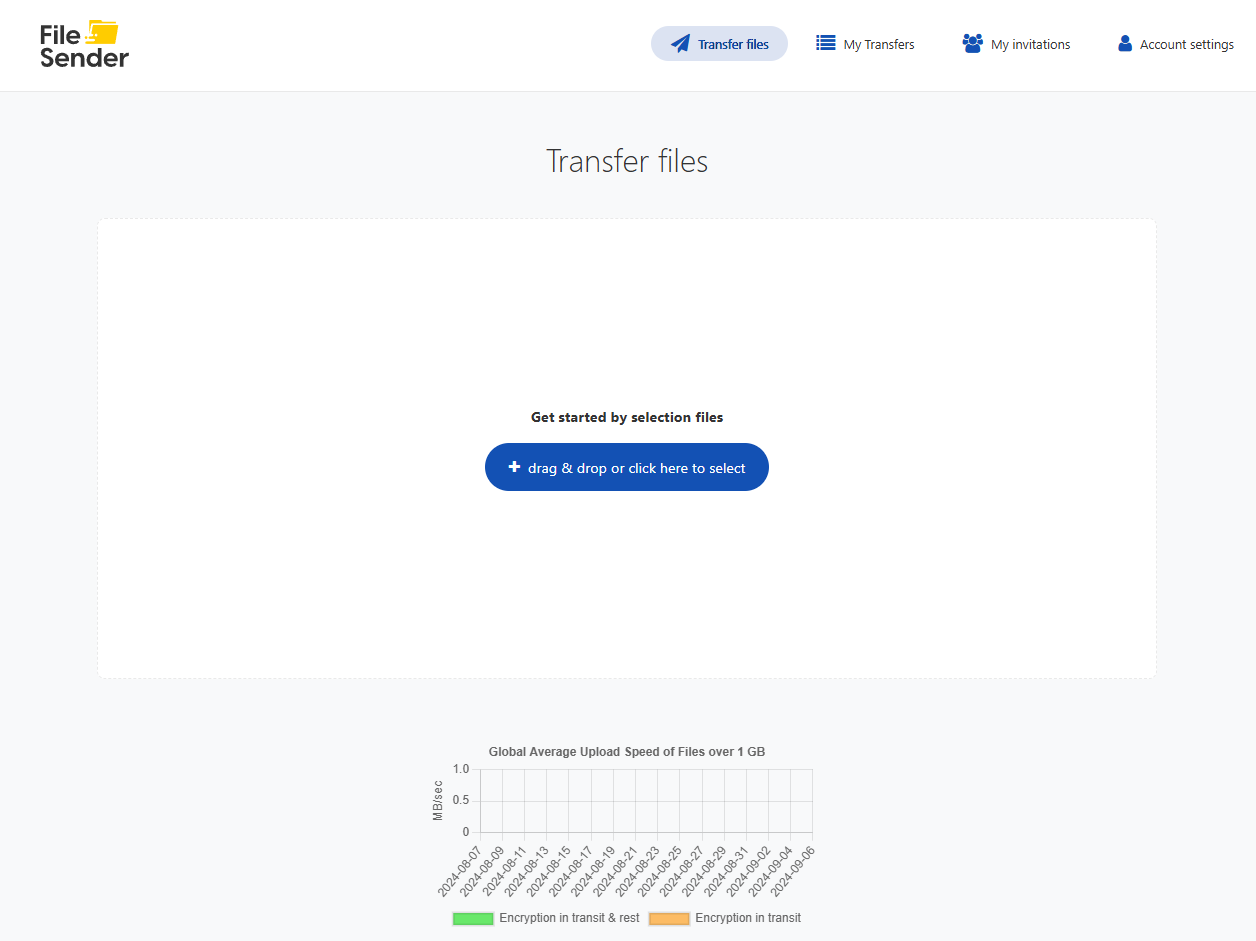
- Drag and Drop: Simply drag your file(s) into the designated area on the webpage.
- Select File: Alternatively, click on the area to open a file dialog and select the file(s) you wish to transfer.

You will also see a graph displaying your upload speeds in MB/sec, providing real-time feedback on your file transfer performance.
Transferring Files

After uploading one or more files, proceed as follows:
- Click "Next": After the files are uploaded, click the "Next" button to proceed to the transfer options.
- Choose Transfer Method:
- Transfer via Link: Generate a link that you can share.
- Send via Email: Send to recipient(s) via email.
- Add Additional Information:
- Subject: Enter a subject for the transfer.
- Message: Add an optional message.
- Encrypt Files: Optionally, you can encrypt the files with a password.
Note: If a file is encrypted using this method, FileSender support cannot restore the file in case the password is lost. - Set Expiration: Choose between 7 and 15 days for the transfer to expire.
- Advanced Options:
- Notification Settings: Configure notifications for when the transfer expires, files are uploaded, downloaded, etc.
- Recipient Login Requirement: Mandate that the recipient must log in to FileSender to download the file(s).
- Confirm Transfer: After confirming, the file gets readied for transfer. You will either receive the transfer link or it will be sent as an email, depending on the chosen transfer method.

Top Menu Options
...
- Add Recipients: Add more recipients to an existing transfer.
- Resend Reminders: Send reminder emails to recipients.
- Log Information: View detailed logs about the transfer.

My Invitations
...
More advanced invitation options are also available for further customization.

Account Settings
...
- Visual and Language Preferences: Set your preferred appearance and language.
- Logs: Access, clear, and export logs of your activity.
- Service Information: Read the terms and conditions of the service.
- API Secret: Generate or delete an API secret for remote authentication if you are developing REST clients.

...